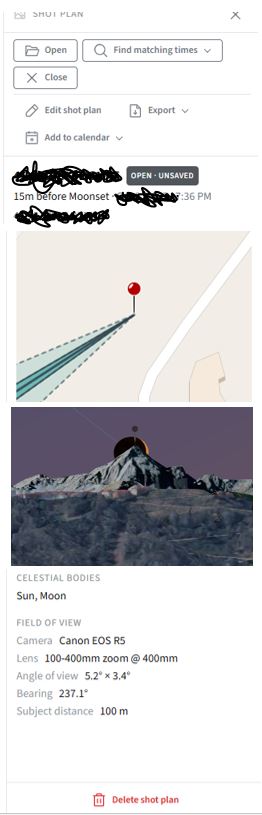
Currently, I have several shot plans saved for the future.
When I see the list of theses saved plans, in the window on the right side there is a little map, that shows red pin location.
Anyway, often I experience some difficulties to remember what these saved plans are, and I have to reopen them.
So, my suggestion is that.. Is it possible to save, in the right side window, just above (or below, it’s the same) the little map with red pin location, a little image, a screenshot of 3D view of the scene ?
Right now, the plan list only has a small static map thumbnail that cannot be zoomed. Often I can’t remember what each shot plan is for, so I have to open them one by one to load the 3D View. The 3D View takes a while to load, which prevents quick browsing. I need to open another plan again if I want to check the next one.
If we add a preview thumbnail of the 3D View directly in the plan list, we can quickly flip through the 3D View for different shot plans. This will save a lot of time when managing many shot plans.
One extra small suggestion: it would be nice if the map thumbnail inside the plan list supported zooming. Then we can clearly see the camera position, the subject and its bearing. This would be a fantastic quality-of-life improvement.
Maybe, the best way is not an automatic add of the 3d image, but instead the possibility to upload an image. In this way, the user may customize the image, e.g. adding text on it
I agree, but it will take me a while longer to support (there are all sorts of complications with allowing image upload, technically and legally). Would a 3D preview be useful in the meantime? That could be done pretty quickly, I think (although it may need to use the Outline or Shaded mode, at least initially).
Support launching the 3D preview in the planner first (Outline and Shaded to start with, so we at least have a preview), and look forward to the Photorealistic preview later.